

If you use Gmail or an Android phone, chances are you already have a full address book stored in Google Contacts—even if you’ve never added anyone manually. Google automatically keeps track of the people you email, call, or message, and stores them under your account. This includes:
- Contacts saved on your phone and synced to Google
- People you’ve emailed in Gmail (even if you never clicked “Save”)
- Contacts imported from apps like Calendar or Meet
Before importing your Google contacts into roomvu, it’s important to make sure all of them; especially those under Other contacts are added to your main Contacts list. This ensures every person you communicate with appears in your roomvu dashboard for email marketing and automation.
Follow the steps below to access, organize, and import your complete Google contact list into roomvu.
What counts as “Google contacts” (and where they come from)
- Saved Contacts: people you explicitly saved in Google Contacts or your phone’s Contacts app (these sync to your Google Account).
- Other contacts: emails you’ve interacted with in Gmail that were auto-saved for convenience (they autocomplete in Gmail but aren’t in your main list until you add them).
- Device & SIM contacts you back up/sync to your Google Account also appear in Google Contacts.
Open Google Contacts
- Search “Google Contacts” or go to contacts.google.com.
- If prompted, sign in to your Google Account.
- You’ll land on Contacts (your saved list).
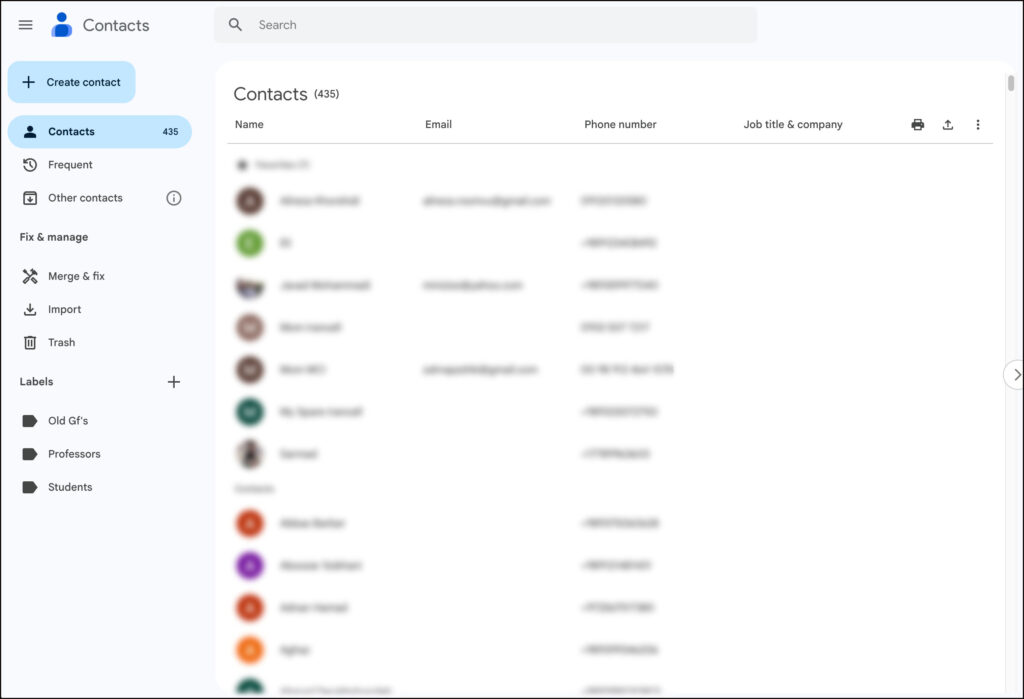
Reveal the hidden list: “Other contacts”
- In the left sidebar, click Other contacts.
- This shows addresses Gmail saved from your past emails that aren’t in your main list yet. (Note: “Other contacts” is only visible on desktop.)
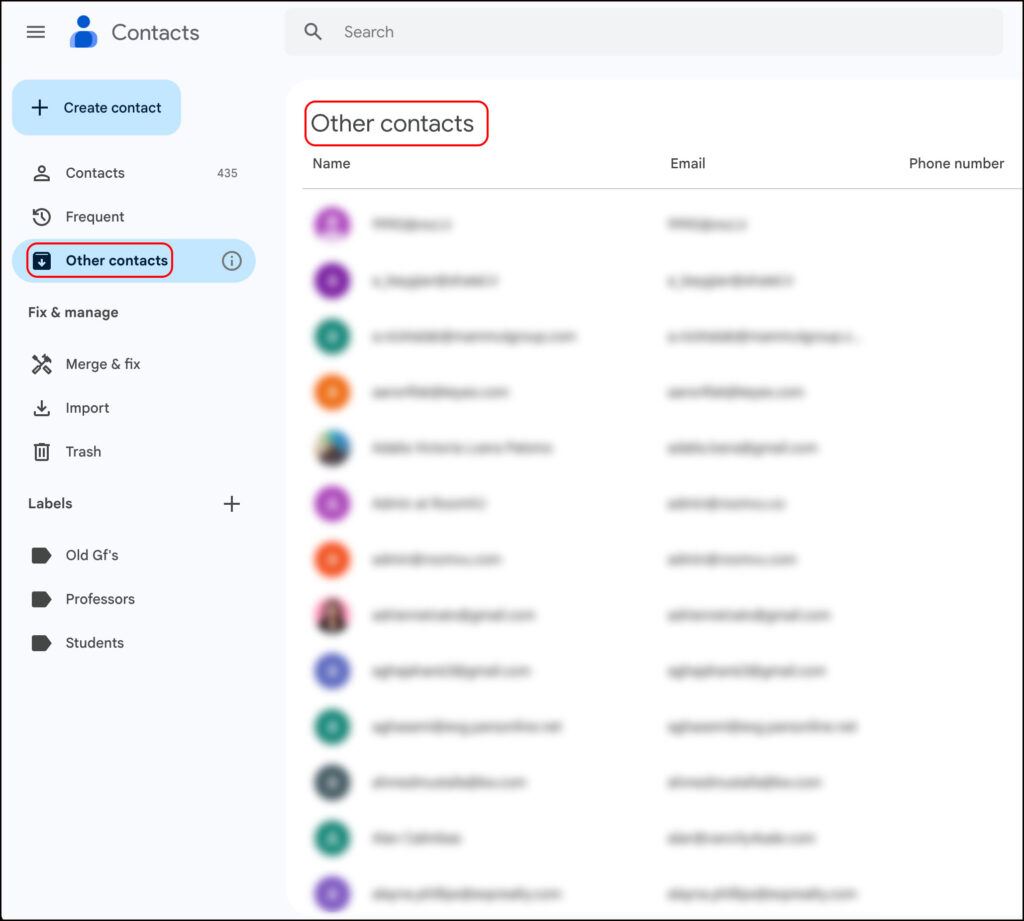
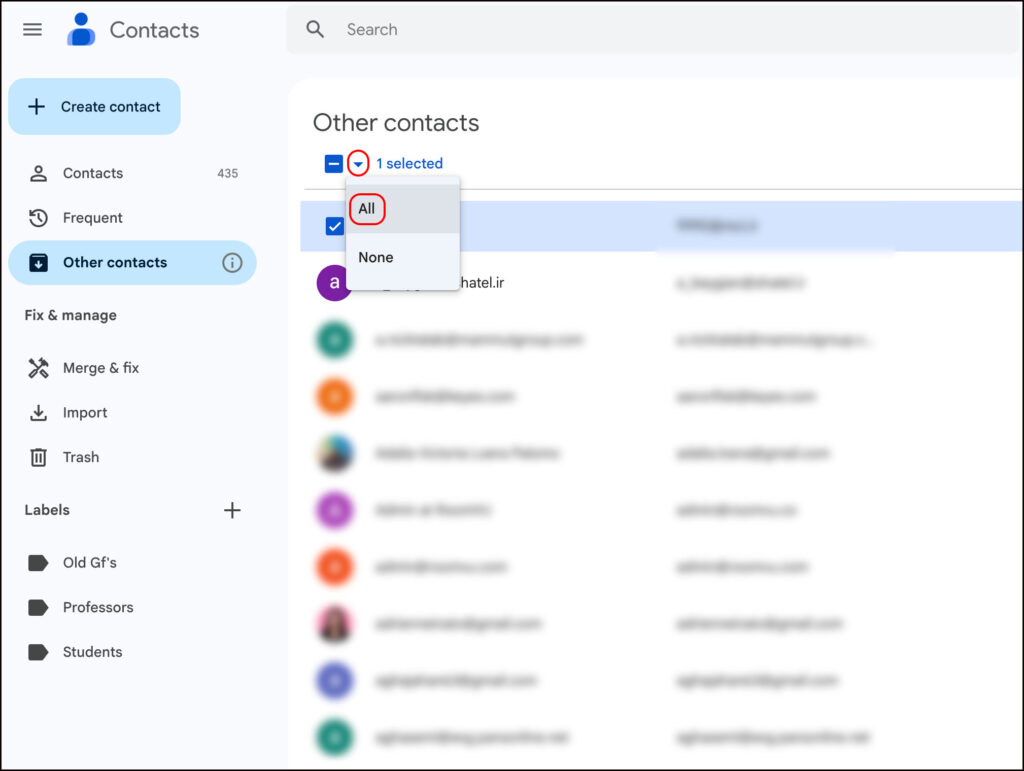
Select everything in “Other contacts”
- Hover your mouse over any contact’s avatar/photo to reveal a checkbox; click to select it.
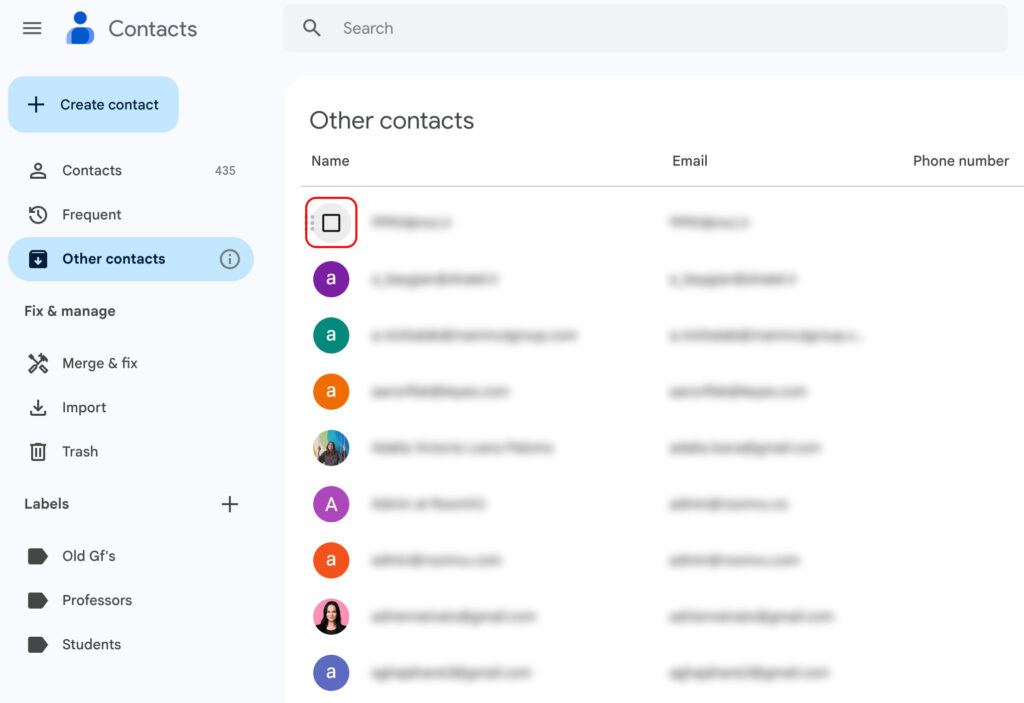
- A bar appears at the top (e.g., “1 selected”).
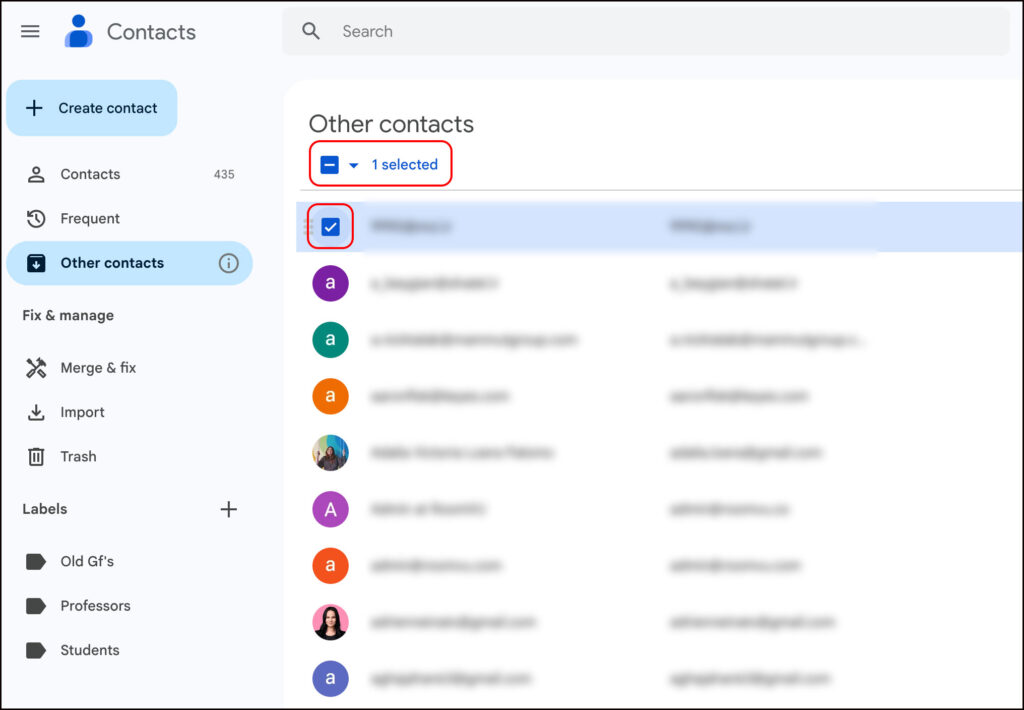
- Click the down-arrow next to the selection count and choose All to select every entry in “Other contacts.”
Add them to your main Contacts
- In the top-right toolbar, click the person + (Add to contacts) button.
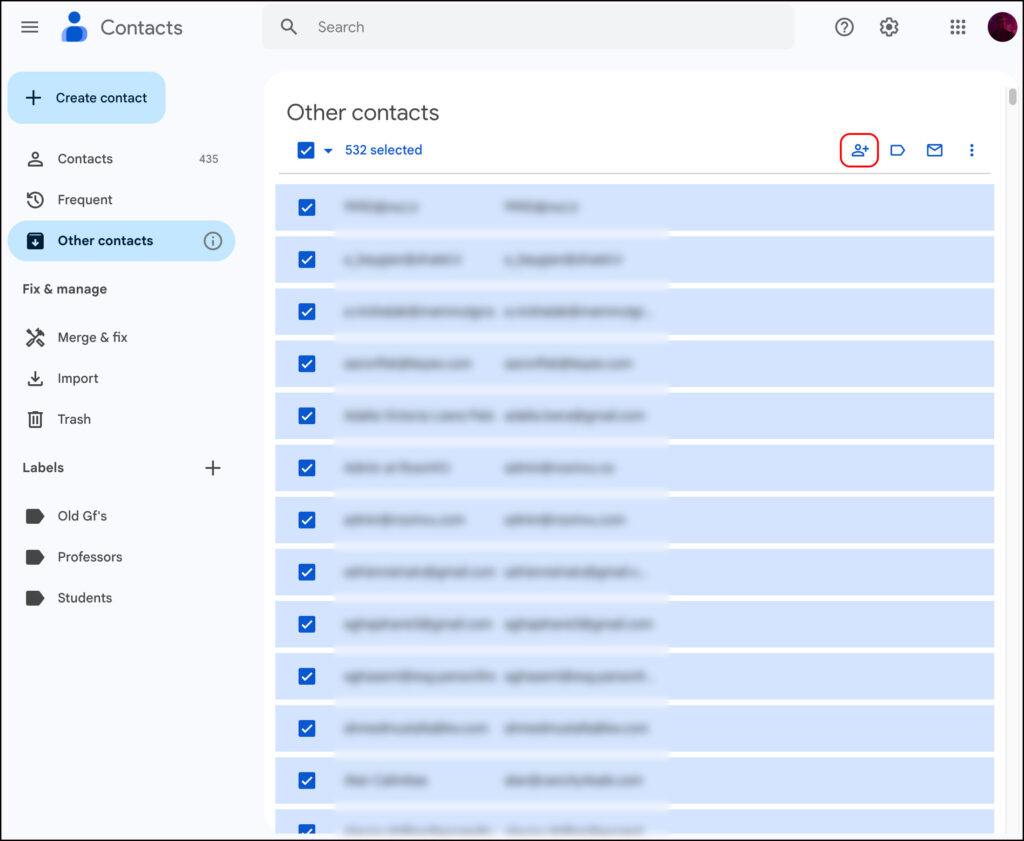
- The selected entries move from Other contacts to Contacts and disappear from “Other contacts.”
Why this step matters: roomvu (and most apps) pull from your Contacts list. Moving items over ensures you import everyone—not just the already-saved people.
Connect Google to roomvu and import
- Open your roomvu dashboard.
- In the left sidebar, go to Email Campaigns.
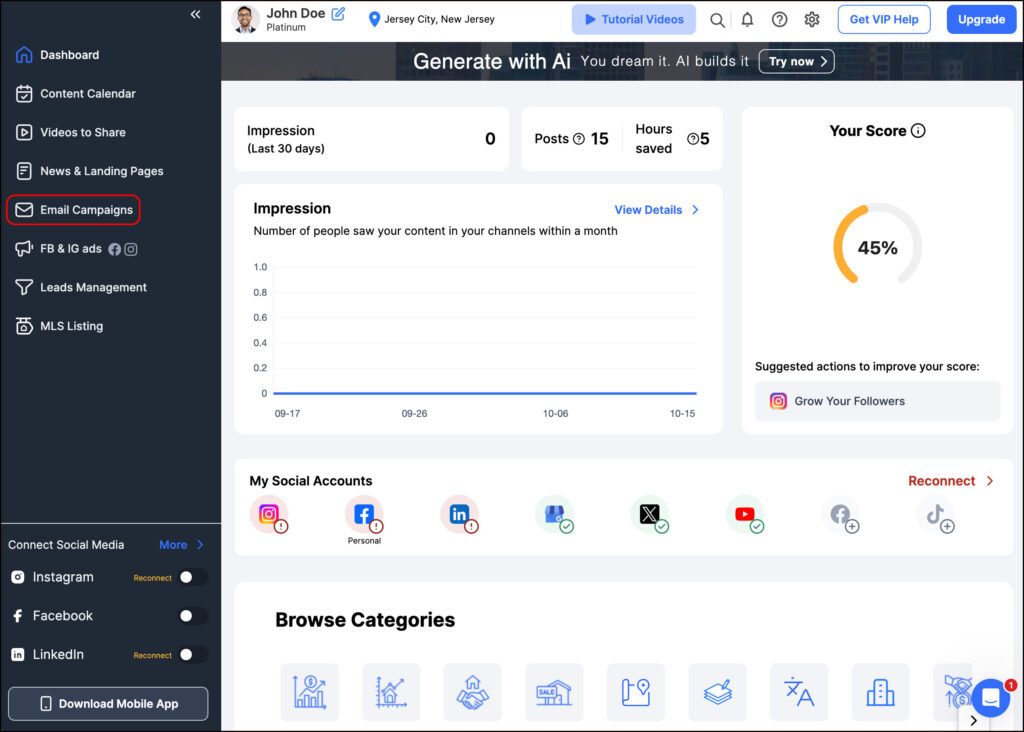
- Under Contacts, click All Contacts.
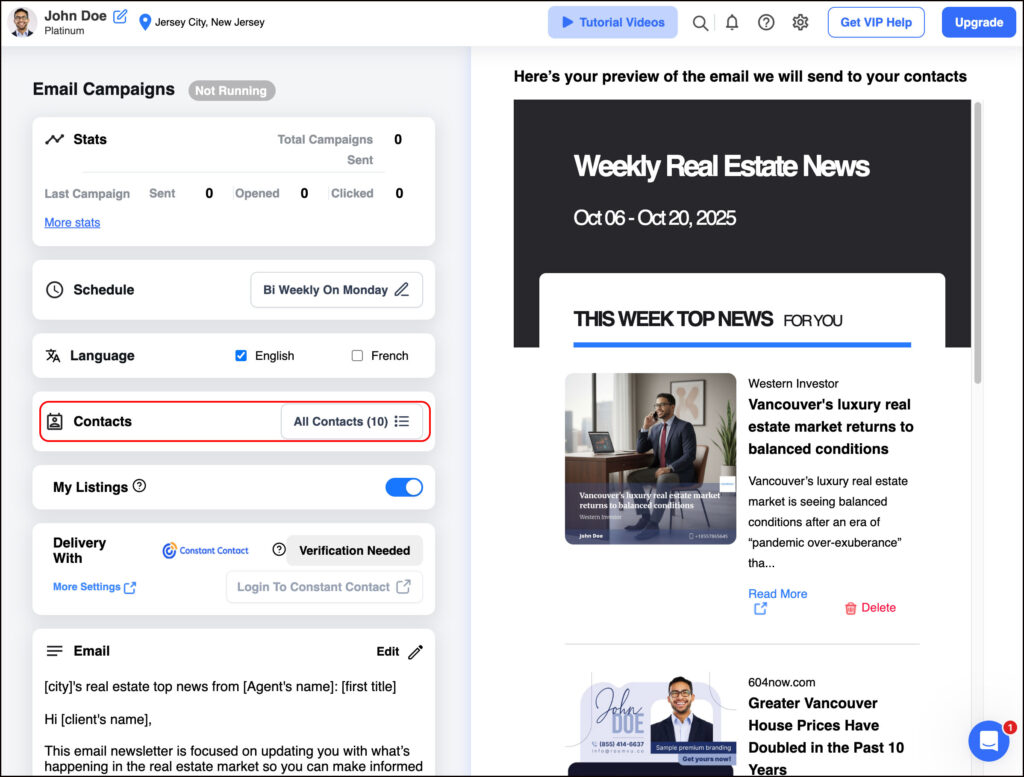
- Choose Import Google Contacts.
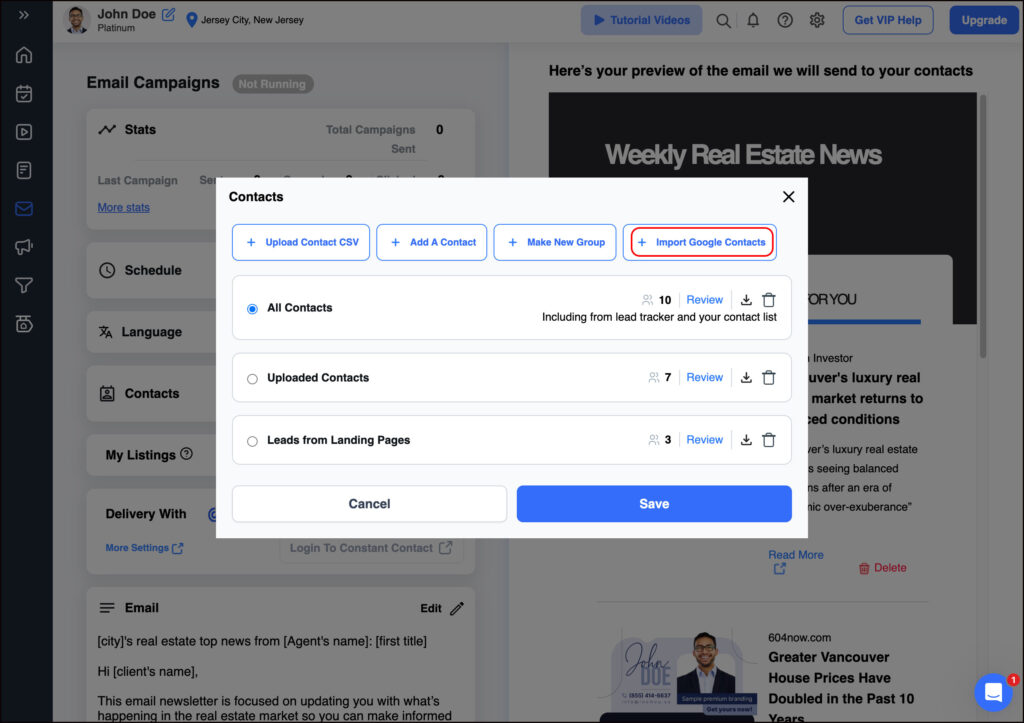
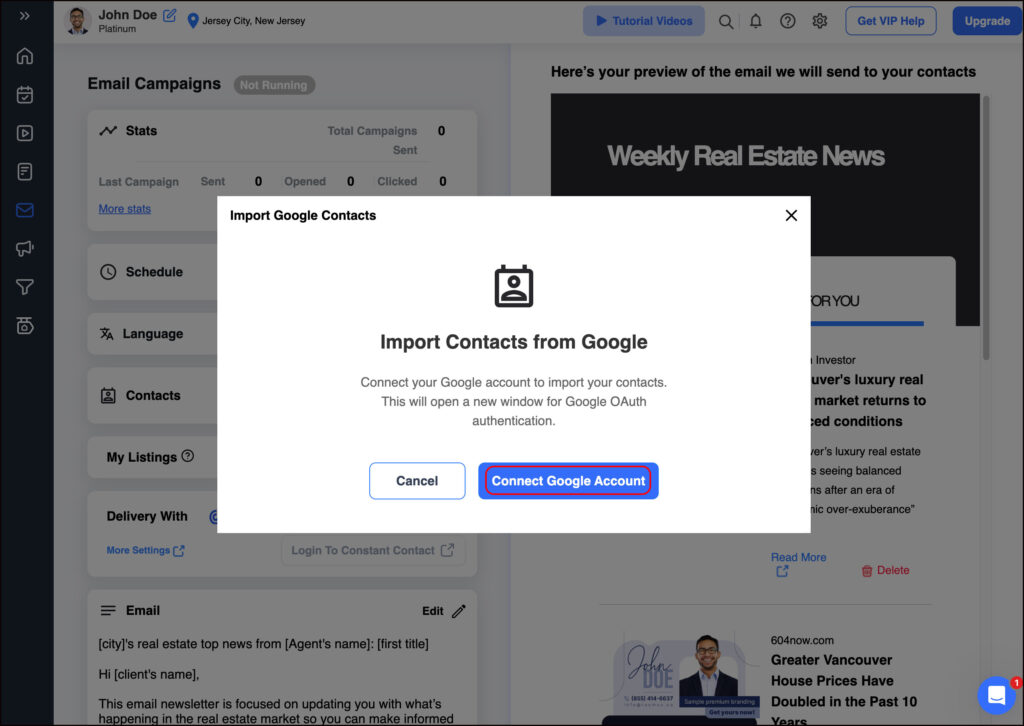
- Click Connect Google Account in the pop-up.
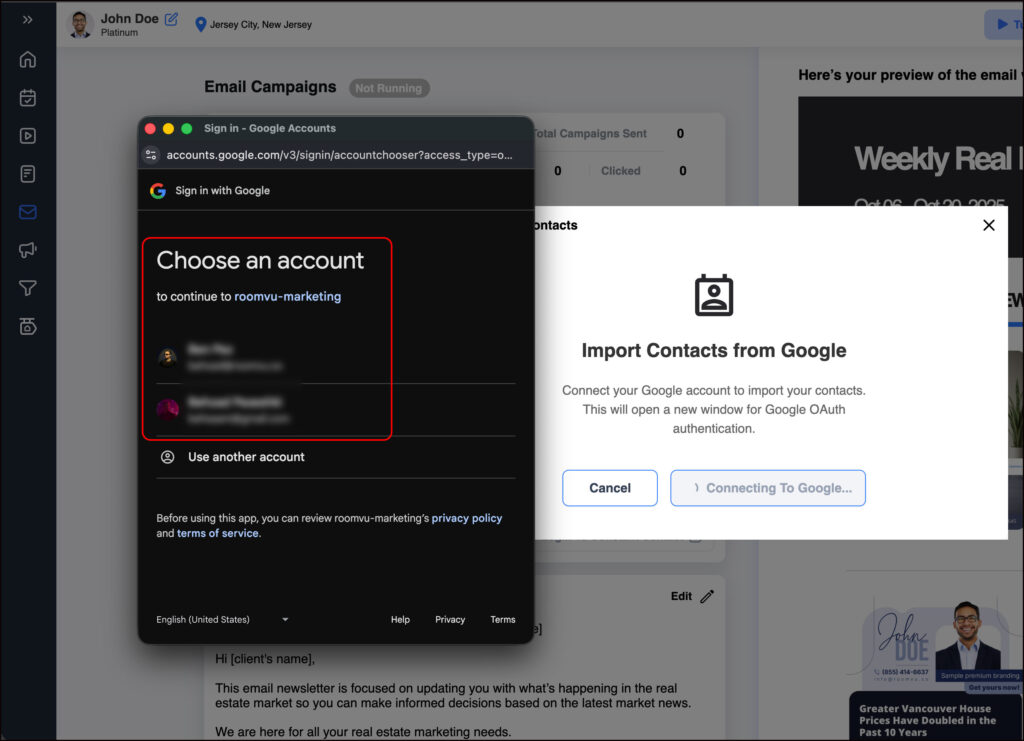
- Select your Google Account and allow permissions as prompted.
- Wait for confirmation—your Google contacts now appear inside roomvu → Email Marketing → Contacts.
Tips & troubleshooting
- Don’t see “Other contacts”? Make sure you’re on desktop Google Contacts, not the mobile app.
- Contacts missing from Google? Ensure your phone contacts are syncing to your Google Account (Settings → Accounts → Google → Sync Contacts on Android).
- Prefer to keep Gmail from auto-saving future addresses to “Other contacts”? Adjust Gmail’s Create contacts for auto-complete setting.